flowchart LR
    A(*.tex File) --> |LaTeXML| B(*.html)
    B --> |upload| C(Canvas Files)
    C --> |embed| D(Publish Canvas Page)
    B --> |copy-paste| D
Using LaTeXML to create Canvas pages
HTML files currently offer the best accessibility features.
Please follow the instructions to install LaTeXML. Depending on your system, you may need to pre-install something first.
Workflow
Flowchart:
Step 1. Conversion to HTML via LaTeXML
To convert example_1.tex to an accessible HTML file, run the following command in a terminal
latexmlc example_1.tex --dest=example_1.htmlA message will be printed, listing possible failures in the conversion. Here’s a list of known failures and some pre-conversion suggestions to better prepare tex file. See also examples for things that are known to work well.
It will always creates a usable example_1.html, alongside two more css-file, LaTeXML.css and ltx-article.css, and a log file. You may open the HTML file with a browswer to see if everything is correctly formatted.
Step 2: Add to Canvas
There are two methods of creating a Canvas Page.
Copy-Paste
Instructions:
- Open the HTML file in a text editor
- Select everything and copy.
- Go to the canvas course page, and create a New Page under the Page tab.
- Click the
</>icon to switch to HTML Editor and paste the contents there. (See the figure below.) - You may save the page to preview and switch back to the Canvas’s Rice Content Editor to fix formatting issues and to add links to files and images.
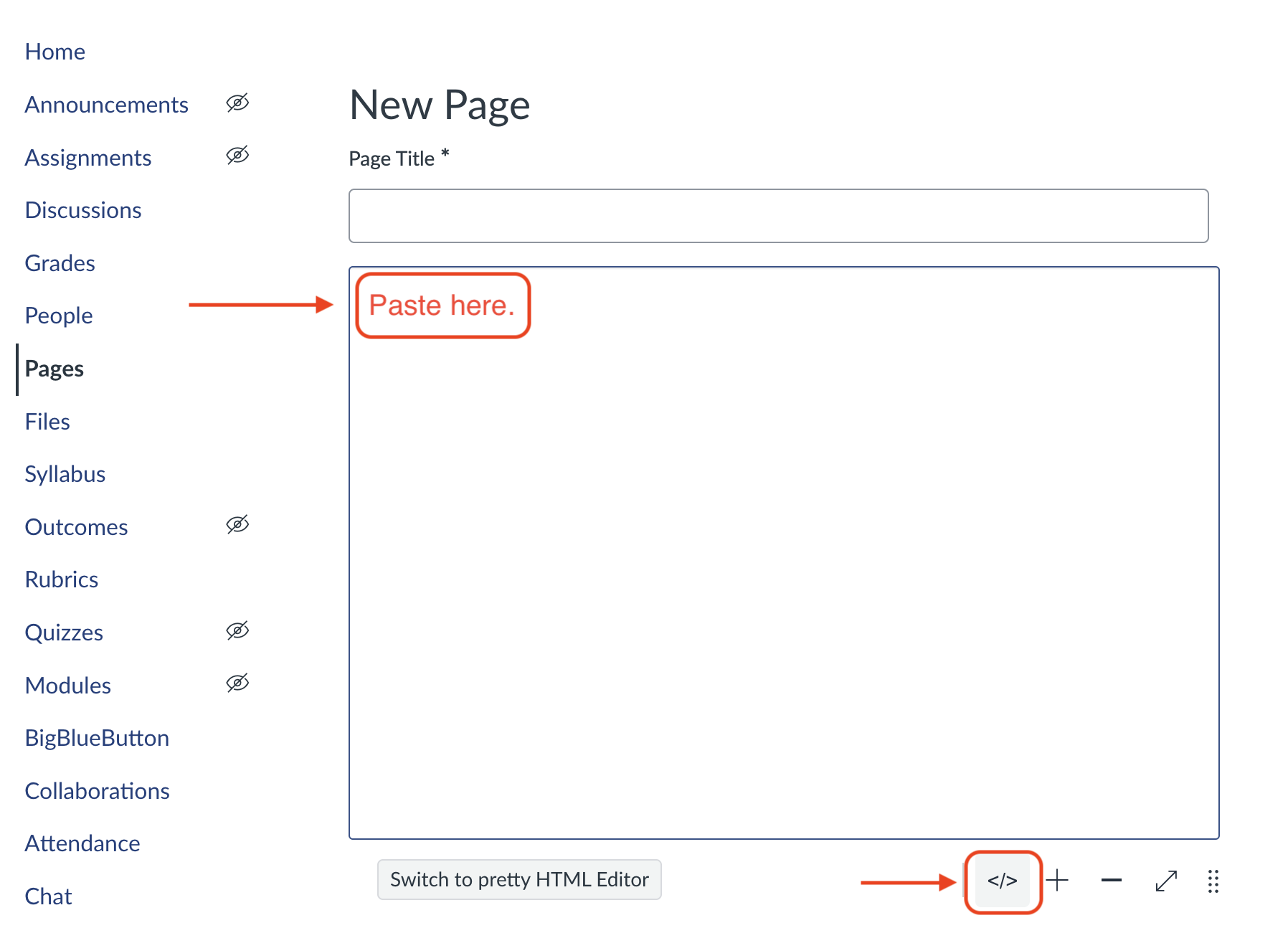
Embed HTML
This is a workaround to have HTML rendered by the CSS files created by LaTeXML and to have images rendered automatically,
Instructions:
Go to the canvas course page, and create a New Page under the Page tab.
Click the
</>icon to switch to HTML Editor (See Figure 1) and paste the following<p><iframe src="LINK_TO_BE_ADDED" width="100%" height="1000" ></iframe></p>Upload the HTML file, CSS files, images to a folder on canvas
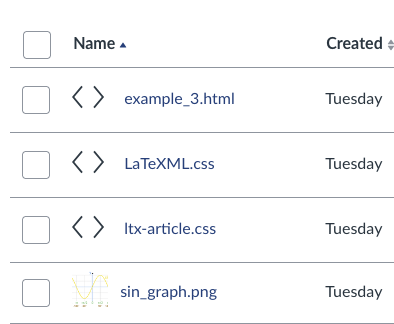
Click on the HTML file to preview
On the top-right corner, right-click the download icon to copy the download link (see Figure 3).
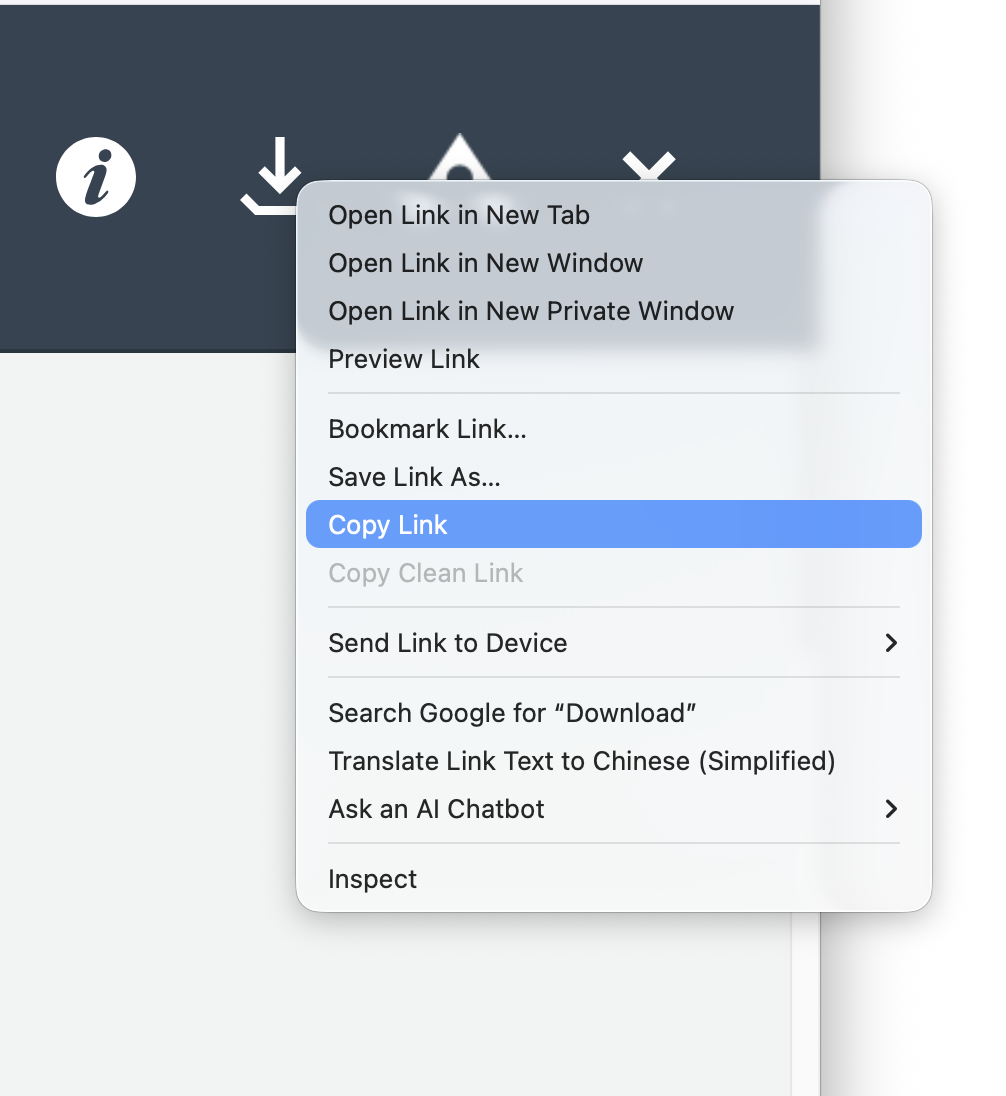
Figure 3: Copy Download Link A download link typically looks like this (this is just an example, not a working link):
https://psu.instructure.com/files/123456789/download?download_frd=1&verifier=abc123123ABCABCPaste everything in the link up to and including
?to iframe in the HTML Editor of the canvas page. It should appear as<p><iframe src="https://psu.instructure.com/files/123456789/download?" width="100%" height="1000" ></iframe></p>Save to preview the Canvas Page. You may adjust the height of the iframe box to avoid a scroll bar on the box.